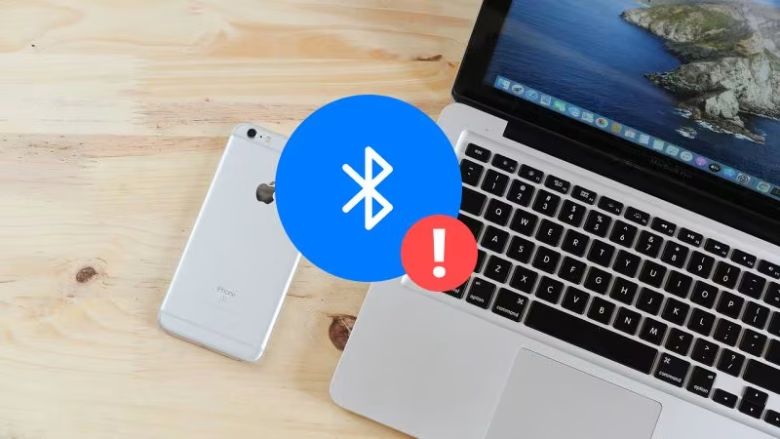
Your Magic Mouse disconnects mid-swipe, your AirPods refuse to pair despite a full battery, or worse, the Bluetooth toggle in your menu bar is completely greyed out with a jagged line through it. A corrupted Bluetooth connection on a Mac instantly paralyzes your workflow, turning expensive wireless peripherals into useless desk weights. Instead of resigning yourself to trackpad cramps or buying wired replacements, you can force your Mac to rebuild its wireless protocols from scratch.
The Technical Reality: How macOS Handles Hardware Drivers
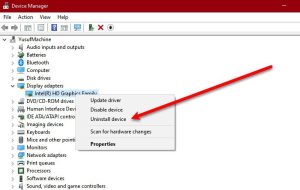
To fix this issue, you must first understand a critical difference between Macs and Windows PCs. On a Windows machine, you can simply open a device manager, uninstall a broken driver, and download a fresh executable file from a manufacturer. Apple engineers designed macOS with a completely locked-down, integrated approach to hardware communication.
According to Apple’s official system security architecture, macOS uses deeply integrated Kernel Extensions (Kexts) instead of standalone drivers. This means the software controlling your Bluetooth module is permanently baked into the core operating system. You cannot download a “Mac Bluetooth Driver” from a website.
When your Bluetooth fails on a software level, it is not because the core driver is missing. It is because the background process managing the driver has crashed, or the configuration files directing the driver have become severely corrupted. To “reinstall” the driver experience, you must systematically kill the stalled background daemons, delete the corrupted configuration files, and force the operating system to generate clean code.
Diagnostic Check: Verify the Hardware is Alive
Before you start deleting system files, you must confirm that the physical Bluetooth antenna inside your Mac has not suffered a hardware death. Software troubleshooting is a waste of time if the logic board connection has failed. You can check the physical status using the built-in system profiler.
Hold down the Option key on your keyboard and click the Apple logo in the top-left corner of your screen. Click on System Information (or System Report on older versions). On the left sidebar, scroll down to the Hardware section and click on Bluetooth.
Look at the main window. If you see detailed technical readouts, firmware versions, and a MAC address, your physical hardware is perfectly healthy and your issue is strictly software corruption. If the window simply says “No information found,” your internal Bluetooth module has physically died, and you will require a hardware repair from an Apple Store.
Method 1: Force Restart the Bluetooth Daemon (bluetoothd)
The fastest way to resolve an unresponsive Bluetooth module on modern macOS versions (Monterey, Ventura, and Sonoma) is to forcefully kill the background process running the hardware. When you terminate this process, macOS instantly panics and relaunches a fresh, uncorrupted instance of the driver.
-
Press Command + Space to open Spotlight search, type Terminal, and press Enter to launch the command line interface.
-
Type the following exact command:
sudo pkill bluetoothdand press Enter. -
The Terminal will prompt you for your Mac login password. Type your password (keystrokes will remain invisible for security) and hit Enter.
Your screen will not flash, and there is no success popup, but the Bluetooth daemon is instantly killed and restarted in the background. Wait five seconds, click your Bluetooth icon in the menu bar, and attempt to connect your devices.
Method 2: Purge Corrupted Bluetooth Property Lists (Plist)
If killing the background process did not work, your Mac is likely trying to load corrupted connection data every time it boots. Mac operating systems store all hardware preferences in files called Property Lists (.plist). Deleting these files forces macOS to build a brand new, error-free driver configuration directory upon the next restart.
-
Click on the Finder icon in your dock, then click Go in the top menu bar. Select Go to Folder from the dropdown menu.
-
Type
/Library/Preferencesin the search box and press Enter to open the system preferences directory. -
Scroll through the alphabetical list and locate the file named
com.apple.Bluetooth.plist. Drag this specific file straight into the Trash. -
Open the Go to Folder prompt again, type
~/Library/Preferences/ByHost(do not forget the tilde~symbol), and hit Enter. -
Look for any file starting with
com.apple.Bluetoothfollowed by a string of numbers, and drag it to the Trash as well.
Once both files are in the Trash, restart your Mac immediately. As the operating system boots up, it will notice the missing files and generate perfectly clean, factory-fresh Bluetooth configurations. You will need to manually pair your mouse and keyboard again.
Method 3: Reset the NVRAM and SMC (Intel Macs Only)
If you are using an older Mac powered by an Intel processor, your hardware states are managed by the Non-Volatile Random-Access Memory (NVRAM) and the System Management Controller (SMC). These chips store low-level hardware data, including wireless radio states. A deep corruption here will block the Bluetooth driver from ever communicating with the logic board.
To reset the NVRAM, shut down your Mac completely. Press the power button, and immediately press and hold four keys simultaneously: Option + Command + P + R. Hold these keys for roughly 20 seconds. You might hear the startup chime play twice, or see the Apple logo appear and disappear twice. Release the keys and let the Mac boot normally.
If you are using a modern Apple Silicon Mac (M1, M2, or M3 chips), you can completely skip this step. Apple Silicon architecture handles NVRAM resets automatically during standard reboots. Simply turning your M-series Mac off and leaving it powered down for thirty seconds achieves the exact same hardware reset.
Method 4: Reinstall macOS to Restore the Core Kexts
If you have wiped the preferences, reset the hardware controllers, and restarted the daemons, but your Bluetooth remains dead, the core Kernel Extensions are deeply corrupted. The only way to legitimately “reinstall” the root Bluetooth driver on a Mac is to perform an in-place reinstallation of the operating system.
Boot your Mac into macOS Recovery Mode. For Intel Macs, hold Command + R while powering on. For Apple Silicon Macs, press and hold the physical power button until you see the “Loading startup options” screen, then click Options.
Select Reinstall macOS from the utility menu and follow the on-screen prompts. An in-place reinstallation strictly overwrites the core operating system files, including all system drivers. It leaves your personal files, installed applications, and user data completely untouched, providing a perfectly clean slate for your wireless hardware.
Frequently Asked Questions (FAQ)
Why does my Bluetooth icon have a jagged line through it?
That jagged line means the operating system says “Bluetooth Not Available.” This occurs when the macOS software completely loses communication with the physical Bluetooth module on the logic board due to a crashed daemon or extreme .plist corruption.
Will deleting Plist files erase my paired devices?
Yes. Deleting the com.apple.Bluetooth.plist file destroys the saved history of your wireless connections. When your Mac reboots, it will act like it is fresh out of the box regarding Bluetooth, requiring you to manually re-pair every wireless mouse, keyboard, and speaker.
Do I need to buy a Bluetooth dongle to fix this?
Generally, no. Unless the System Information report confirms a physical hardware failure, a dongle is a waste of money. Furthermore, macOS is notoriously picky about third-party Bluetooth adapters, and most cheap USB dongles lack the necessary drivers to interface with Apple’s proprietary software architecture.
Take Control of Your Mac’s Wireless Connections
Losing your Bluetooth connection turns a premium Mac experience into a frustrating exercise in finding wired workarounds. Because macOS heavily locks down its driver architecture, you cannot rely on simple download links to fix corruption. By verifying the physical hardware, purging corrupted property lists, and systematically resetting the background daemons, you actively rebuild the connection protocols from the ground up. Stop fighting with unresponsive trackpads and greyed-out menus—open your Terminal or dive into your Preference folders right now to force your Mac back into working order.
How to Fix Bluetooth Not Working on Mac – Step by Step This video provides an excellent visual walkthrough of locating hidden property list files in the Finder and executing the necessary terminal commands to restart the macOS Bluetooth daemon.