You tap your favorite social media, banking, or gaming app on your Samsung Galaxy, the screen flashes its logo for a split second, and you are violently kicked straight back to your home screen. A crash on startup completely destroys your digital workflow and turns your premium device into an incredibly frustrating, unresponsive brick. Instead of repeatedly tapping the icon and hoping for a different result, you need to systematically strip away the corrupted background data causing the software failure.
The Technical Reality: Why One UI Force Closes Your Apps
The Android operating system relies on a complex web of shared services, background processes, and temporary data caches to open applications instantly. When you launch an app, it sends a request to the device’s memory to pull up saved login states, user preferences, and graphical assets. If this cached data became corrupted during a previous browsing session, the app attempts to read broken code, panics, and forcefully shuts down to prevent a system-wide crash.
According to Samsung’s official application troubleshooting documentation, many startup crashes are not actually the fault of the specific app developer. They are frequently triggered by a localized failure within the Android System WebView. This is a core Google component built directly into the operating system that allows third-party apps to display web content seamlessly.
When WebView receives a botched background update from the Google Play Store, every single app that relies on it will instantly crash the moment it tries to load a login page or an embedded web banner. Because this failure is entirely software-based, you do not need to perform a factory reset or take your phone to a repair shop. You have complete control over flushing out these corrupted caches and stabilizing your Samsung Galaxy device right now.
Pre-Diagnostic Check: Isolate the Scope of the Failure
Before you begin altering system settings, you must determine if the problem is isolated to a single application or if your entire operating system is suffering from a cascading software failure. Tap three completely different apps, such as your camera, your web browser, and a downloaded game.
If only one specific app is crashing, the problem is localized entirely to that app’s installation file or local cache. You can resolve this quickly using Method 1 below.
If every single app you tap immediately force-closes and boots you to the home screen, your core Android framework is actively failing. You will need to bypass the individual apps and proceed directly to repairing the Android System WebView and wiping the system cache partition.
Method 1: Force Stop and Clear the App Cache (The Surgical Strike)
Every time you use an app, it saves temporary files like thumbnail images and script data to your phone’s internal storage to make the app load faster next time. If this temporary cache becomes bloated or corrupted, the app chokes on the bad data during startup. Clearing this cache is the fastest, safest way to revive a dead application.
-
Open your Samsung Settings app and scroll down to tap on Apps.
-
Scroll through your alphabetical list and tap on the specific application that keeps crashing.
-
Tap Force stop at the bottom right of the screen, and confirm by tapping OK.
-
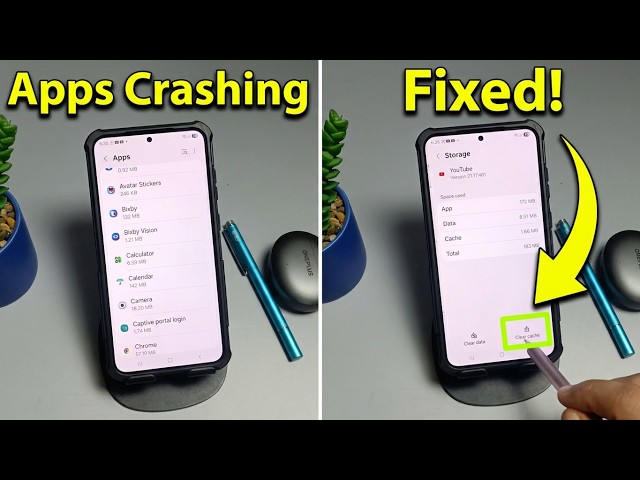
Tap on Storage, then tap the Clear cache icon at the bottom right.
Do not tap “Clear data” unless absolutely necessary, as this will delete your login credentials and force you to set up the app from scratch. Restart your phone and try launching the app again.
Method 2: Repair the Android System WebView (The Global Fix)
If multiple apps are crashing simultaneously, a corrupted Android System WebView process is the prime suspect. This specific component is notorious for receiving silent, buggy updates that break thousands of apps worldwide in a matter of hours. You must force your phone to revert to a stable version of this critical bridge software.
-
Open the Settings app on your Galaxy device and tap on Apps.
-
Scroll down until you find Android System WebView and tap on it to open its properties.
-
Tap the three vertical dots in the top right corner of the screen and select Uninstall updates.
-
Confirm the prompt to replace the app with the factory version.
Once the uninstallation is complete, immediately open the Google Play Store, search for “Android System WebView,” and install the latest stable update. This process strips away the corrupted code and replaces it with a fresh, functioning framework.
Method 3: Update the Core Software Ecosystem
Android apps are built using specific API (Application Programming Interface) targets designed to match specific versions of Samsung’s One UI software. If your phone recently updated to a new version of Android, but your app has not been updated by its developer in a year, the software mismatch will trigger an instant crash. You must ensure your entire ecosystem is synchronized.
First, open the Google Play Store, tap your profile icon in the top right, and select Manage apps & device. Tap Update all to ensure every third-party application has the latest stability patches.
Next, because you are using a Samsung device, you must also check the proprietary Galaxy ecosystem. Open the Galaxy Store app, tap the Menu button in the bottom right, tap Updates, and download any pending patches for core Samsung services. A heavily outdated Samsung background service can easily crash modern applications trying to utilize your camera or microphone.
Method 4: Wipe the System Cache Partition (The Deep Clean)
If the standard cache clears and updates fail to stabilize your device, your Samsung Galaxy is likely holding onto corrupted temporary operating system files. These files live in a hidden sector of your storage called the cache partition. Wiping this partition clears out digital garbage left behind by old Android updates without touching your personal photos, messages, or installed apps.
-
Turn off your Samsung Galaxy completely.
-
Connect your phone to a computer or a powered USB port using a USB-C cable (This is a strict requirement for modern Samsung devices running One UI 3.0 or newer to access recovery mode).
-
Press and hold the Volume Up button and the Power button simultaneously.
-
Release both buttons the exact moment the Samsung Galaxy logo appears on the screen.
You are now in the Android Recovery menu. Use the Volume Down button to highlight Wipe cache partition, then press the Power button to select it. Highlight Yes, press the Power button to confirm, and then select Reboot system now when the process completes.
Method 5: Disable Aggressive Battery Optimization
Samsung’s One UI includes an incredibly aggressive battery management system that puts background applications into a “Deep Sleep” state to preserve power. Sometimes, an app requires a specific background service to start up properly. If Samsung’s battery manager killed that required background service, the app will instantly crash when you try to open it.
-
Open the Settings app and navigate to Battery (or Battery and device care on older models).
-
Tap on Background usage limits.
-
Tap on Deep sleeping apps and review the list.
-
If the crashing app is on this list, press and hold its icon, then tap Remove at the bottom of the screen.
Frequently Asked Questions (FAQ)
Will clearing an app’s data delete my account permanently?
No. Tapping “Clear data” only deletes the local configuration files stored physically on your Samsung device. Your actual account, cloud saves, purchase history, and user profiles are safely stored on the developer’s remote servers. You will simply need to type in your username and password again the next time you launch the application.
Why do my apps only crash after a major One UI software update?
Major operating system updates completely rewrite the rules for how apps access your phone’s memory, camera, and processing power. If an app developer has not updated their code to comply with Samsung’s new security protocols or API requirements, the operating system will forcefully block the app from opening to protect your device.
Can RAM Plus cause my apps to crash on startup?
Yes, in specific scenarios. RAM Plus is a Samsung feature that uses a portion of your slower internal storage as virtual memory. If your internal storage is nearly full or heavily fragmented, the virtual memory becomes incredibly slow, causing heavy applications to time out and crash during initialization. You can disable this by going to Settings > Device care > Memory > RAM Plus and toggling it off.
Is it possible the app itself is just broken?
Absolutely. If you have wiped the cache partition, updated your WebView, and verified your software is current, the developer likely pushed a broken update to the Play Store. In these cases, you must wait for the developer to issue a patch. You can verify this by checking the app’s recent reviews in the Play Store and sorting by “Newest” to see if other users are reporting identical crashes.
Wrap Up
Having your apps violently crash on startup ruins your mobile experience, but it rarely points to a failing processor or degraded hardware. Because the failure is almost always trapped in corrupted local caches, botched WebView updates, or overly aggressive battery management, you hold the power to fix the miscommunication yourself. Do not resort to a destructive factory reset immediately. Start with the absolute easiest physical fix right now: open your Settings, navigate to your Apps list, and clear the local cache of the specific application giving you trouble.
How to Fix Apps Keep Crashing on Samsung Galaxy This video search link provides multiple visual walkthroughs of accessing the Android Recovery menu to wipe your system cache partition safely.