You invest in a premium 5G smartphone expecting blazing-fast download speeds and seamless video streaming, but instead, you are trapped staring at an empty signal bar or a constant “Searching…” notification. Paying for top-tier cellular service only to be bumped down to a sluggish LTE connection—or losing mobile data entirely—is incredibly frustrating and instantly ruins your mobile workflow. Instead of assuming your device’s internal antenna is broken or blindly blaming your carrier’s coverage map, you need to address the software managing your radio frequencies.
The Android operating system relies on a deeply integrated, constantly updating network stack to seamlessly hand off your connection between varying cellular towers as you move. When the temporary data governing this handoff becomes corrupted, your 5G connection is the first system to completely crash. You can force your phone to rebuild this digital bridge from scratch by executing a targeted network reset.
The Technical Reality: Why Your Android 5G Connection Fails
To permanently fix this issue, you must understand how your Android device communicates with modern cell towers. Most global 5G networks currently operate on a Non-Standalone (NSA) architecture, meaning your smartphone must simultaneously anchor itself to a legacy 4G LTE tower while downloading data through a high-frequency 5G band. This dual-connection requirement puts massive stress on your device’s baseband processor and its localized radio cache.
According to Google’s official Android network troubleshooting documentation, your phone utilizes hidden configuration files called Access Point Names (APNs) to route this complex radio traffic. Carriers regularly push silent, over-the-air updates to these APN profiles to optimize local tower traffic. If your Android operating system caches an older routing profile, a severe software mismatch occurs the next time you drive into a new 5G coverage zone.
When this mismatch happens, the modem panics because it can no longer translate the radio frequencies broadcasting from the local tower. To prevent an infinite, battery-draining scanning loop, Android aggressively severs the 5G connection and refuses to reconnect. By performing a network reset, you are explicitly ordering the operating system to delete the corrupted APN cache, dump the poisoned radio profiles, and download fresh routing instructions directly from your carrier.
Pre-Diagnostic Checks: Isolate the True Culprit
Before you completely wipe your localized network settings, you must rule out external factors that you cannot control. Troubleshooting your internal software is a complete waste of time if your local cell tower is physically undergoing maintenance or suffering a power outage.
First, connect your Android device to a secure Wi-Fi network and check a downtime monitoring service like DownDetector for your specific carrier (such as Verizon, T-Mobile, or Vodafone). If you see a massive, immediate spike in user outage reports for your specific zip code, the local 5G infrastructure is offline. No amount of local device troubleshooting will restore your connection until the carrier completes their physical repairs.
Second, verify the physical integrity of your SIM card, as a damaged chip will instantly drop high-bandwidth 5G connections. Use a SIM ejector tool to pop the tray out of the side of your phone, and inspect the gold contacts on the card for deep scratches or dark oxidation. Wipe the contacts gently with a dry microfiber cloth, re-insert the card firmly, and restart your device to see if the connection stabilizes.
Step-by-Step: Executing the Network Reset
If your carrier is online and your hardware is physically pristine, the deep network routing cache within Android is heavily corrupted. You must force the operating system to permanently delete its cellular memory and rebuild its connection protocols.
Be acutely aware that this specific reset process strictly targets your invisible networking cache and saved radio connections. Your personal data, photo library, text messages, and installed applications are completely untouched and 100% safe. However, it will delete all saved Wi-Fi passwords and paired Bluetooth devices, so ensure you have your home network password written down before proceeding.
For Google Pixel and Stock Android Devices
-
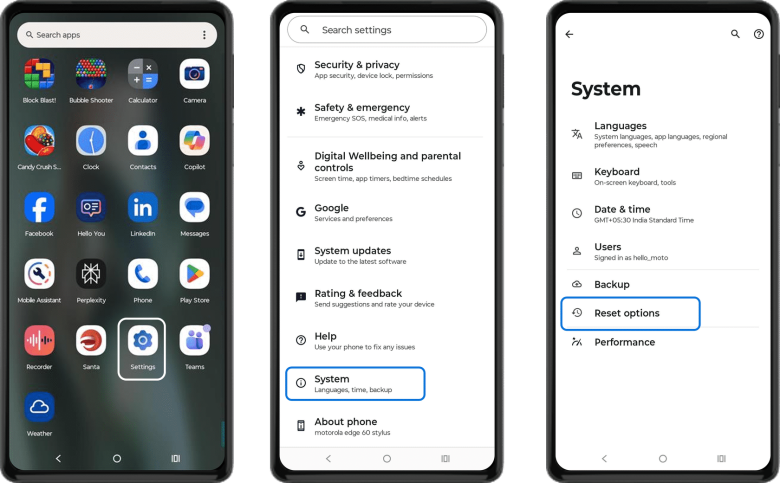
Open the Settings app from your home screen or app drawer.
-
Scroll all the way down to the bottom of the page and tap on System.
-
Tap on Reset options located near the bottom of the sub-menu.
-
Select Reset Wi-Fi, mobile & Bluetooth from the available choices.
-
Tap the Reset settings button, enter your device PIN to confirm your identity, and tap the final confirmation prompt.
Your screen will flash briefly as the network stack restarts. The phone will automatically ping the nearest cellular tower to download a pristine configuration profile.
For Samsung Galaxy Devices (One UI)
-
Open the Samsung Settings app and scroll down to tap on General management.
-
Scroll to the bottom of this menu and tap on Reset.
-
Tap exactly on the option labeled Reset network settings.
-
Tap the Reset settings button, enter your secure lock screen PIN, and confirm the action.
Your Galaxy device will clear the cache and may briefly drop cellular service before locking onto a fresh, uncorrupted 5G signal.
Post-Reset Optimization: Locking in Your 5G Signal
Once your device finishes the reset and reconnects to the network, you need to adjust a few background settings to prevent the software from dropping the connection again. Modern Android versions prioritize battery life over network speed, which can actively sabotage your 5G experience.
Android features an algorithm called Adaptive Connectivity (or Smart 5G on some manufacturer skins) that seamlessly downgrades you to 4G when it thinks you do not need ultra-fast speeds. Unfortunately, this algorithm is often far too aggressive and will constantly drop your 5G connection just to save a negligible amount of battery. You must disable this interference to maintain a rock-solid high-speed connection.
To disable this interference on a Pixel, go to Settings > Network & internet > Adaptive connectivity and toggle the switch to the off position. For Samsung users, navigate to Settings > Connections > Mobile networks, tap on Network mode, and ensure the device is explicitly set to 5G/LTE/3G/2G (auto connect) without any battery-saver throttling enabled.
Frequently Asked Questions (FAQ)
Why does my phone say 5G but load pages incredibly slowly?
This is known as a “false positive” connection state. Your phone is successfully connecting to the tower’s control channel, allowing it to display the 5G icon, but the actual data payload channel is failing to authenticate due to a corrupted background IP address. Resetting your network settings flushes out the broken IP and forces a complete data handshake, resolving the false positive immediately.
Will I need to call my carrier after doing this?
Generally, no. When you reset the network settings, Android automatically pulls the correct, up-to-date carrier profile from the inserted physical SIM card or active digital eSIM profile upon reboot. However, if your connection remains completely dead after a reset, your carrier may need to re-provision your specific device IMEI on their network servers.
Can a thick phone case cause 5G connection drops?
Yes, depending entirely on the manufacturing materials used in the case. 5G millimeter-wave (mmWave) frequencies are incredibly fragile and cannot easily penetrate dense objects. Heavy-duty cases lined with metal, aluminum protective bumpers, or magnetic wallet attachments can actively block the internal cellular antenna bands, causing instant network drops.
Why does my phone switch to LTE when I make a phone call?
This is entirely normal behavior if your carrier has not fully deployed Voice over New Radio (VoNR) in your specific area. Most voice calls are still routed through highly stable legacy LTE networks (VoLTE) to ensure perfect call clarity without digital artifacts. Your device will automatically switch back to the high-speed 5G data network the exact second you hang up the phone.
Wrap Up
Losing your 5G connection transforms a cutting-edge mobile device into a frustrating, slow, and unreliable tool. Because these connection drops are predominantly driven by background software mismatches, outdated carrier configuration profiles, or corrupted OS routing caches, you possess all the tools necessary to restore the connection yourself. Do not tolerate a degraded cellular experience or wait endlessly on hold with carrier support.
Take control of your mobile hardware right now. Open your Settings app, navigate to your Reset Options, and flush out that corrupted network stack to get your 5G speeds back immediately.
How to Reset Network Settings on Android to Fix Connection Issues