
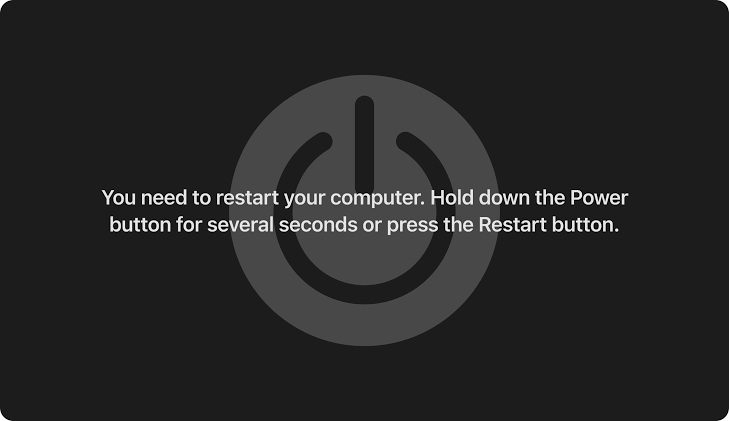
You are rendering a massive video file or typing a crucial email when your Mac screen suddenly goes black, displays a terrifying multi-lingual error message, and forcefully restarts itself. A kernel panic on macOS Sonoma is the digital equivalent of pulling the emergency brake on a moving train. It violently halts your workflow, leaving you staring at a reboot screen and wondering if your expensive machine is permanently broken. Instead of hoping it was a one-time fluke, you need to actively identify the conflicting software or hardware that forced your operating system to crash.
The Technical Reality: What Causes a Kernel Panic?
According to Apple’s official Mac troubleshooting guidelines, a kernel panic occurs when the core of the macOS operating system encounters a fatal error it simply cannot recover from. Unlike a standard application crash where a single program force-closes, a kernel-level failure corrupts the active system memory across the entire machine. To prevent this corrupted memory from writing permanent, catastrophic errors to your internal SSD, the Mac instantly kills all power and reboots as a self-preservation tactic.
In macOS Sonoma, Apple has heavily restricted traditional Kernel Extensions (Kexts) in favor of safer, sandboxed System Extensions. However, legacy software, aggressive antivirus suites, and incompatible external hardware can still penetrate these defenses and trigger system failures. Because the operating system generates a highly detailed log file the exact millisecond the crash occurs, you possess the exact diagnostic data needed to permanently cure the instability.
Pre-Diagnostic Check: Reading the Panic Log
Before you start unplugging cables or reinstalling the operating system, you need to read the crash report. When your Mac reboots after a panic, it usually displays a prompt asking if you want to report the error to Apple. Click the “Report” or “More Info” button to view the raw text log detailing the crash.
If you previously dismissed that prompt, you can still find the log manually. Open the Finder, click Go in the top menu bar, and select Go to Folder. Type /Library/Logs/DiagnosticReports and press Enter, then look for any file ending in .panic and open it with TextEdit.
Scan the first twenty lines of the text document for a section labeled “Kernel Extensions in backtrace” or a specific app identifier. If you see a third-party developer name like com.symantec or com.cisco, you instantly know a specific application caused the crash. If the log points to an Apple-specific process like WindowServer, the issue is heavily tied to local memory management or connected displays.
Method 1: Disconnect and Isolate Peripheral Hardware
Bad hardware causes kernel panics just as often as bad software. A faulty Thunderbolt dock, a degraded USB-C display cable, or a failing external hard drive can send a corrupted electrical signal directly to the Mac logic board. The macOS kernel interprets this corrupted voltage spike as a fatal error and immediately shuts down the machine to prevent electrical damage.
Disconnect absolutely everything from your Mac except the official power cable. This isolation includes removing external monitors, USB hubs, audio interfaces, SD cards, and external storage drives. Use the Mac in this bare-bones, stripped-down state for a full day.
If the kernel panics stop completely, you have a definitive hardware conflict. Reconnect your peripherals one by one, giving each device a few hours of dedicated testing. The exact moment the Mac crashes again, you have successfully isolated the defective piece of hardware or the bad cable.
Method 2: Boot into macOS Safe Mode
If the panics continue with zero peripherals attached, you have a deeply rooted software conflict. Booting into Safe Mode forces macOS Sonoma to perform a directory check, delete corrupted system caches, and completely disable all third-party kernel extensions.
For an Apple Silicon Mac (M1, M2, M3), shut down the computer entirely. Press and hold the physical power button until the screen displays “Loading startup options,” click your main hard drive, hold the Shift key, and click “Continue in Safe Mode.”
For an Intel-based Mac, restart the machine and immediately press and hold the Shift key the moment the screen turns on. Release the key when the Apple logo finally appears. If your Mac remains perfectly stable in Safe Mode, you definitively know a third-party background application is causing your normal boot state to crash.
Method 3: Purge Legacy Software and Security Tools
macOS Sonoma is highly restrictive regarding background system access. If you recently migrated your data from an older Mac, you likely brought over outdated software that is actively fighting the new Sonoma kernel architecture. Antivirus programs, third-party firewalls, and deep audio-routing apps are the absolute most common offenders.
Open your Applications folder and heavily scrutinize your installed software. Look specifically for outdated versions of VPN clients, aggressive internet security suites, or virtualization software that has not received an update in the last year.
Do not just drag these apps to the Trash, as that leaves their corrupted kernel extensions deeply embedded in your system folder. You must use the developer’s official uninstaller tool or a dedicated cleaning app like AppCleaner to hunt down and eradicate the associated background daemons. Restart your Mac immediately after the purge to clear the active system memory.
Method 4: Resolve Sleep-Wake and WindowServer Panics
macOS Sonoma has a heavily documented issue regarding sleep states and external monitors. If your Mac crashes exactly when you wake it from sleep or open the laptop lid, the WindowServer process is failing to properly re-initialize your connected displays.
To fix this, open your System Settings, navigate to Displays, and click the Advanced button. Toggle off the “Prevent automatic sleeping on power adapter when the display is off” setting to stop the system from confusing the display state. You should also replace any cheap HDMI cables with certified high-bandwidth DisplayPort or Thunderbolt 4 cables, as signal degradation instantly crashes the WindowServer process.
Method 5: Run Apple Diagnostics for Failing Hardware
If you have stripped away your peripherals and purged your software but the panics persist, you must test your internal hardware. Failing RAM or a degraded logic board will consistently trigger a kernel panic when the processor attempts to access a dead sector of physical memory.
On Apple Silicon Macs, turn off the machine, press and hold the power button until the startup options appear, and then press and hold Command + D to launch the diagnostic suite.
On Intel Macs, turn off the machine, press the power button, and immediately press and hold the D key until a progress bar appears on a black screen. Let the diagnostic test run to completion. If it returns an error code related to memory or the logic board, no software fix will save you, and the machine requires a physical repair.
Method 6: Perform an In-Place macOS Reinstallation
If the hardware diagnostics pass with flying colors, your core macOS Sonoma system files are irreparably corrupted. You must forcefully overwrite the broken operating system files with a factory-fresh copy directly from Apple’s servers.
Boot your Mac into macOS Recovery by holding the power button on Apple Silicon, or holding Command + R on Intel Macs. Select Reinstall macOS Sonoma from the primary utility menu and follow the on-screen prompts.
An in-place reinstallation strictly replaces the core system files and default Apple frameworks. It leaves your personal files, custom settings, and third-party apps completely untouched, providing a perfectly clean slate for the kernel to operate on without deleting your data.
Frequently Asked Questions (FAQ)
Does a kernel panic mean my Mac is permanently dying?
No. In the vast majority of cases, a kernel panic is a software conflict or a badly coded application trying to access restricted memory. Unless the Apple Diagnostics tool throws a specific hardware code, your physical machine is perfectly healthy.
What is the “Pink Screen of Death” on newer Macs?
On Apple Silicon models, a kernel panic often briefly flashes a bright pink or magenta screen right before the computer reboots. This is the exact same failure as a traditional black-screen kernel panic, just displayed differently by the M-series graphics architecture.
Will reinstalling macOS Sonoma delete my files?
No. Standard macOS reinstallation from the recovery menu performs an “in-place upgrade.” It only overwrites the system volume where the core operating system lives, leaving your dedicated Macintosh HD – Data volume completely untouched and secure.
Can extreme heat cause a kernel panic?
Yes. If your Mac’s internal fans are clogged with dust or the thermal paste has dried out, the processor will rapidly overheat. If the standard thermal throttling fails to cool the chip, the logic board will force a kernel panic to cut the power and prevent the CPU from melting.
Wrap Up
A kernel panic is terrifying to experience, but it is rarely a permanent death sentence for your Mac. By isolating bad peripheral hardware, reading the diagnostic logs, and stripping away legacy software extensions, you can permanently eliminate these catastrophic crashes. Stop tolerating a machine that randomly reboots and disrupts your work; unplug those external accessories and boot into Safe Mode right now to begin isolating the exact culprit.