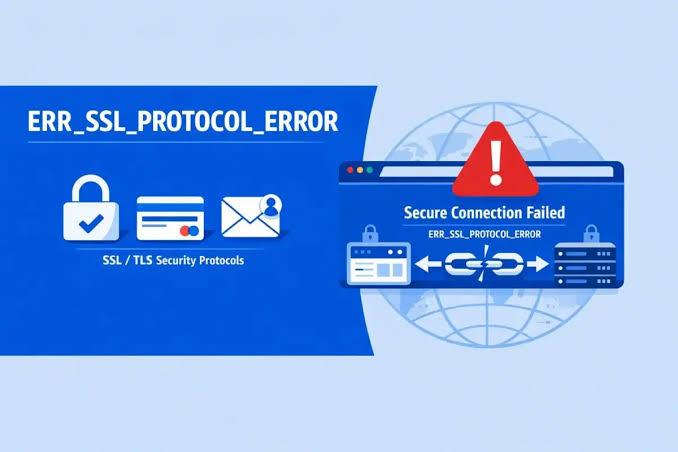
You try to visit a secure website on your Mac, and Safari abruptly blocks your path with an ERR_SSL_PROTOCOL_ERROR. This error means Safari cannot verify the cryptographic security of the destination server. While it looks like a severe network threat, it is almost always a simple miscommunication caused by your local macOS settings.
The Technical Reality of SSL Protocol Errors
To understand how to fix this, you need to know why Safari is panicking. According to the Internet Engineering Task Force (IETF) standards for Transport Layer Security (TLS), establishing a secure connection requires a flawless cryptographic “handshake.”
When you type a URL, Safari and the website server negotiate which encryption cipher to use. If local data on your Mac corrupts this handshake, or if the server uses an outdated protocol, Safari immediately terminates the connection to protect your sensitive data.
Because Safari is deeply integrated with the macOS operating system, you cannot fix this by just tinkering inside the browser. You have to adjust the system-level settings controlling how your Mac handles secure connections.
Step-by-Step Fixes for macOS
When a website is loading perfectly for everyone else but throwing protocol errors on your Mac, run through these exact steps to reset your local SSL state.
1. Sync Your System Clock to Apple’s Servers
SSL certificates have strict, mathematically defined start and expiration dates down to the exact second. If your Mac’s internal clock drifts even a few minutes, a perfectly valid website certificate will look expired or forged.
-
Open System Settings (or System Preferences on older macOS versions).
-
Navigate to General > Date & Time.
-
Toggle the switch for Set time and date automatically off, wait five seconds, and turn it back on.
Ensure your time source is explicitly set to time.apple.com so your machine perfectly aligns with global server time.
2. Purge Safari’s Encrypted Cache
Sometimes Safari saves a corrupted “snapshot” of an SSL state to load pages faster. When the website updates its security protocols, your browser tries to use the old, incompatible snapshot, resulting in a handshake failure.
-
Open Safari, click Safari in the top menu bar, and select Settings.
-
Navigate to the Privacy tab and click Manage Website Data.
-
Click Remove All, confirm the deletion, and completely quit Safari using Cmd + Q.
3. Audit Keychain Access for Broken Certificates
Unlike Chrome or Firefox, which manage their own security certificates, Safari relies entirely on the macOS Keychain. If a root certificate in your system becomes corrupted or misconfigured, Safari will fail to load secure sites.
-
Press Cmd + Space to open Spotlight, type Keychain Access, and hit Enter.
-
Select System Roots on the left sidebar and click the Certificates tab.
-
Scroll through the list and look for any certificates marked with a red “X” (untrusted). Right-click these problematic certificates and either delete them or change their trust settings to Use System Defaults.
4. Temporarily Disable Web Shields and VPNs
Third-party security software—like Avast, Bitdefender, or strict VPNs—often use a feature called a “web shield.” These tools intercept and inspect your SSL traffic to scan for malware. Safari frequently misinterprets this local interception as a malicious man-in-the-middle attack and blocks the connection.
Turn off your antivirus software entirely or disable your VPN connection. Open an Incognito window in Safari and try loading the site again. If it works, you need to whitelist the website within your security software’s specific settings.
Frequently Asked Questions (FAQ)
Is my Mac infected with a virus?
No. An SSL protocol error is a standard network security protocol designed to protect you. It simply indicates a failure to establish encryption, not the presence of malware on your hard drive.
Can I just bypass this error in Safari?
Usually, no. Safari strictly enforces TLS standards. While some minor certificate errors give you a “Proceed anyway” button, protocol failures are hard blocks to prevent data interception.
Why does the site work on my iPhone but not my Mac?
Your iPhone and your Mac maintain completely separate DNS caches, system clocks, and certificate keychains. If the site loads on iOS, it confirms the website’s server is healthy, and the issue is strictly isolated to your macOS environment.
Wrap Up
Hitting an ERR_SSL_PROTOCOL_ERROR brings your browsing to a dead stop, but it is rarely a permanent roadblock. By syncing your system clock, purging old SSL states, and ensuring your security software is not fighting with Safari, you force your Mac to negotiate a fresh, secure connection. Start with the most common culprit: open your System Settings right now, toggle your automatic time off and on, and try reloading the page.
How to Fix Safari Cannot Open the Page Because it Cannot Establish a Secure Connection This video provides a helpful visual walkthrough of auditing your Mac’s Date & Time settings and clearing corrupted Safari caches.